
User Agent Viewer
See your User-Agent string and Client Hints (navigator.userAgentData).
What is My User Agent? Identify Your Browser & OS
Instantly detect your browser’s user agent string! Our free User Agent Viewer reveals your browser, version, and operating system for debugging and compatibility.
User Agent Viewer: Discover Your Browser’s Digital Fingerprint
Have you ever visited a website that looked perfectly formatted on your laptop but completely broken on your phone? Or have you encountered a frustrating message saying, “Your browser is not supported”? Behind the scenes, a critical piece of data is at work: the User Agent string. For most internet users, this string is an invisible technical detail. But for developers, designers, and tech-savvy individuals, understanding it is crucial.
A User Agent Viewer is a simple yet powerful online tool that instantly reveals and decodes this string, providing essential information about your browser and operating system. Knowing your user agent is the first step in solving compatibility issues, ensuring your websites render correctly for all visitors, and understanding how the web sees your device.
What is a User Agent String? Your Browser’s Introduction Letter
Every time your web browser (like Chrome, Firefox, or Safari) requests a webpage, it sends a string of text known as the User Agent (UA). Think of this string as your browser’s digital ID card or an introduction letter to the website’s server.
This string contains vital details about:
- The web browser you are using (e.g., Chrome, Firefox, Edge, Safari).
- The browser version number.
- Your operating system (e.g., Windows, macOS, Linux, Android, iOS).
- Sometimes, the device type (desktop, mobile, tablet).
- Layout engines (like Blink, Gecko, or WebKit).
The server uses this information to decide what version of the website to send you—for instance, a mobile-friendly version for smartphones or a full desktop experience. Our User Agent Viewer tool reads this string directly from your browser and presents it in a clear, human-readable format.
Why is Knowing Your User Agent Important? Practical Applications
The user agent string is far from an obscure technical artifact. It has several practical and crucial applications in today’s digital world.
For Web Developers and Designers
This is the primary audience for a User Agent Viewer. Developers use it extensively for:
- Cross-Browser Testing: Ensuring a website looks and functions correctly across different browsers (Chrome, Firefox, Safari, Edge) and versions.
- Debugging Layout Issues: When a CSS style or JavaScript function breaks on one specific browser, the user agent helps identify the culprit.
- Responsive Design Checks: Verifying that the server is delivering the correct site version (mobile vs. desktop) based on the user agent.
For SEO Specialists and Marketers
Understanding user agents helps in:
- Googlebot Verification: SEOs can check the user agent of Google’s crawlers to ensure their site is being indexed correctly.
- Traffic Analysis: Analytics tools use user agent data to break down your website traffic by browser, OS, and device type, informing your marketing strategy.
For General Users and Tech Enthusiasts
Even if you’re not a developer, this tool can be useful:
- Troubleshooting Website Errors: If a site doesn’t work, support teams often ask for your user agent to diagnose the problem.
- Bypassing Basic Blocking: Some websites restrict access based on user agent. Knowing how to find it is the first step to understanding these restrictions.
- Satisfying Curiosity: It’s simply interesting to see how your browser identifies itself to the world!
Just as a User Agent Viewer reveals your browser’s identity, presenting clear visuals is key to web design. For perfect visuals, use our Image Resizer tool.
How to Use Our User Agent Viewer Tool: A Simple Guide
Using our tool is arguably one of the simplest tasks you can perform online. It requires zero technical expertise.
- Navigate to the Tool: Simply visit our User Agent Viewer page.
- Let the Tool Work Automatically: The moment the page loads, the tool will automatically detect the user agent string from your current browser.
- View Your Results: Instantly, you will see your full user agent string displayed in a text box. Below or beside it, you will often find a parsed, easy-to-read breakdown.
- Copy and Use: You can then easily copy the string to your clipboard to share with a developer or use for your own testing.
There are no buttons to click or forms to fill out. The tool provides a instant, zero-effort result.
Decoding a User Agent String: A Practical Example
A raw user agent string can look like a jumble of technical terms. Let’s break down a real-world example.
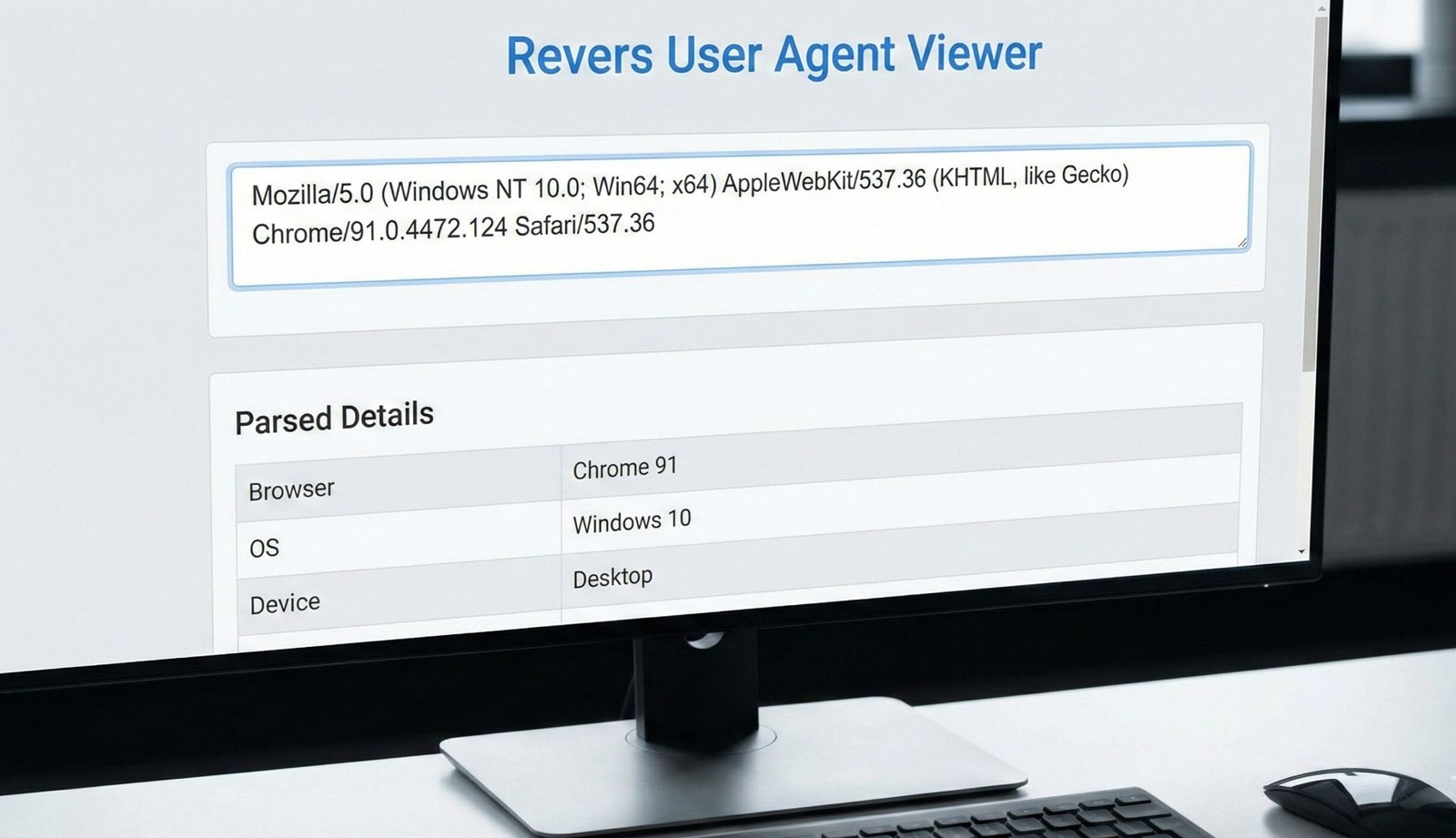
Example User Agent String:Mozilla/5.0 (Windows NT 10.0; Win64; x64) AppleWebKit/537.36 (KHTML, like Gecko) Chrome/91.0.4472.124 Safari/537.36
Here’s what each part means:
Mozilla/5.0: A historical token for compatibility. Almost all modern browsers include this.(Windows NT 10.0; Win64; x64): This is the system platform. It tells us the OS is Windows 10, 64-bit architecture.AppleWebKit/537.36: The rendering engine used to display the webpage. WebKit is the core, and this is a specific version.(KHTML, like Gecko): More historical tokens identifying layout engines.Chrome/91.0.4472.124: The key information: this is the Google Chrome browser, version 91.0.4472.124.Safari/537.36: Included for compatibility to signal that the browser is Safari-like.
Our User Agent Viewer tool does this decoding for you, clearly stating: “You are using Chrome 91 on Windows 10.”
The Evolution of User Agents: A Brief History of Complexity
The user agent string has a long and complicated history, which explains its current, somewhat messy structure. In the early days of the web, the Mosaic browser identified itself simply as NCSA_Mosaic/1.0.
The complexity began with the “browser wars.” As new browsers like Netscape Navigator emerged, they used the Mozilla identifier. When Internet Explorer entered the market, it wanted to access sites designed for Netscape, so it added “Mozilla” to its own string and included a note that it was “compatible.”
This started a chain reaction. Every new browser that wanted to be served the best possible content needed to include “Mozilla” and references to other popular engines like “WebKit” and “Gecko” to ensure compatibility. This is why today, even browsers like Chrome and Edge, which have nothing to do with the original Mozilla project, still start their user agent with Mozilla/5.0. The World Wide Web Consortium (W3C) provides documentation on how these strings are structured for web standards.
User Agent Switcher vs. User Agent Viewer: What’s the Difference?
It’s important to distinguish between these two related but different tools.
- A User Agent Viewer: This is a passive tool that reads and displays your browser’s real user agent string. Our tool is a viewer.
- A User Agent Switcher: This is an active browser extension or setting that allows you to change your user agent string. This is used by developers to test how a website behaves when it thinks it’s being accessed by a different browser or device (e.g., making Chrome pretend to be Safari on an iPhone).
The Future: User Agent Strings and User-Agent Client Hints
The current user agent string is problematic because it is long, prone to being “frozen” (never updated), and can be used for fingerprinting—a method of tracking users without cookies.
To address this, Google is leading a shift towards User-Agent Client Hints in Chrome. This new approach allows a server to request only the specific information it needs (e.g., “is this a mobile device?”) rather than receiving the entire string upfront. This is designed to be more privacy-conscious.
However, the traditional user agent string is not going away anytime soon. It remains a vital tool for compatibility and debugging, and our viewer will continue to be relevant for years to come.
Frequently Asked Questions (FAQs)
Is my user agent string a privacy risk?
Why does my Chrome browser say it’s ‘Mozilla’ and ‘Safari’?
Can I change my user agent string?
Conclusion: Understand How the Web Sees You
Your user agent string is a fundamental part of your web browsing experience, silently working to deliver the correct content to your screen. A User Agent Viewer demystifies this process, transforming a complex string of text into clear, actionable information. Whether you are a developer debugging a critical issue, an SEO specialist analyzing traffic, or simply a curious user, knowing how to find and interpret your user agent is a valuable skill.
Stop wondering why a website looks different on your phone. Start understanding the data that makes it happen. Ready to see your browser’s digital ID? Use our instant, free User Agent Viewer tool now and discover the technical signature of your internet connection!
This links to the official “Request for Comments” (RFC) standard that defines how User Agents must behave.