
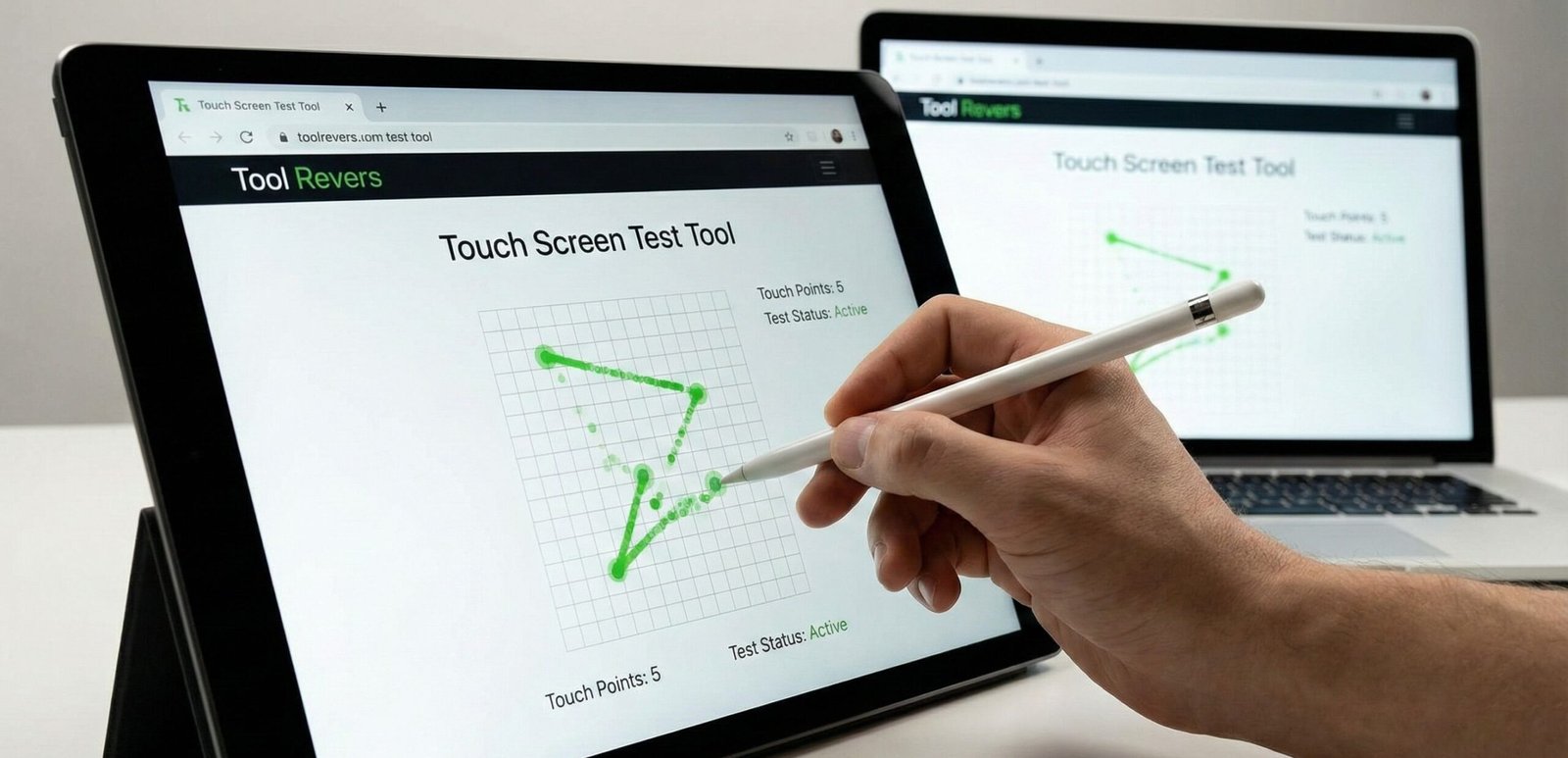
Touch Screen Test Tool
This tool helps you test your device’s touch screen capabilities, including multi-touch support, touch accuracy, and responsiveness. It’s useful for checking if your touchscreen is working properly and for diagnosing potential issues.
How to use: Touch or click in the test area below. The tool will track and display your touch points and movements. You can test multi-touch by using multiple fingers if your device supports it.
Touch Screen Test Online: Diagnose Your Screen Now
Is your touch screen acting up? Use our free online Touch Screen Test Tool to diagnose unresponsive areas, ghost touches, and calibration issues instantly.
Touch Screen Test Tool: Diagnose and Fix Your Touchscreen Issues Instantly
That moment of frustration is all too familiar: you tap an icon, and nothing happens. You try to scroll, and the screen stutters or selects the wrong item. Is it the app, the software, or is your device’s touch screen itself failing? A Touch Screen Test Tool is a simple, yet powerful, online utility designed to answer this exact question. This specialized tool provides a full-screen interactive diagnostic that helps you identify dead zones, unresponsive areas, ghost touches, and calibration problems on any touchscreen device. Whether you’re using a smartphone, tablet, or touch-enabled laptop, this test gives you immediate, visual feedback on the health of your most vital component—the screen itself.
What is a Touch Screen Test Tool and How Can It Help You?
A Touch Screen Test Tool is a web-based application that runs directly in your browser. It works by displaying a uniform grid or a solid color canvas that listens for your touch input across every single pixel of the display.
The core principle is straightforward:
- Activate the Test: You open the tool on the device you want to test.
- Interact with the Screen: You are instructed to touch, swipe, and drag your finger across the entire surface of the screen.
- Get Visual Feedback: The tool visually registers your touch. Areas that don’t light up, register incorrectly, or show input without you touching are immediately visible.
Using our Touch Screen Test Tool provides an immediate diagnosis, saving you time troubleshooting software issues when the problem is actually hardware-related.
Common Touch Screen Problems You Can Diagnose
Not all touch screen issues are the same. This tool helps you pinpoint the specific type of problem you’re facing.
Dead Zones and Unresponsive Areas
This is the most common issue. A “dead zone” is a specific area on the screen that does not register any touch input. This can be caused by physical damage, a loose connector, or a faulty digitizer. The test will clearly show these areas as spots that remain unlit while the rest of the screen responds.
Ghost Touching
Ghost touching is when your screen acts on its own, registering taps and swipes without any physical contact. This can be caused by a faulty digitizer, screen damage, or even moisture under the screen. During the test, you’ll see random dots or lines appearing without your input.
Calibration and Accuracy Issues
Sometimes the screen registers a touch, but it’s in the wrong location. For example, you tap a button on the right, but an icon on the left is selected. This is a calibration problem. The test helps you verify if your touches are being registered precisely where you place your finger.
Multi-Touch Problems
Modern devices support multi-touch for gestures like pinching to zoom. If these gestures aren’t working, it could mean one of the touch sensors is failing. A comprehensive test will include a multi-touch check to see if the device can correctly track two or more fingers simultaneously.
Step-by-Step Guide: How to Test Your Touch Screen
Using our tool is a quick and simple process. Follow these steps for an accurate diagnosis.
Step 1: Prepare Your Device
- Clean your screen with a soft, dry cloth to remove fingerprints and smudges that can interfere with touch sensitivity.
- Remove any screen protectors or cases that might be obstructing the edges of the screen.
Step 2: Open the Tool
Navigate to our Touch Screen Test Tool directly on the device you want to test.
Step 3: Initiate the Test
Click the “Start Test” or “Begin Diagnosis” button. The tool will likely fill your screen with a solid color or a grid pattern.
Step 4: Perform the Diagnostic Actions
Follow the on-screen instructions carefully. This usually involves:
- Touching Every Inch: Methodically press every part of the screen, including the very edges and corners. Watch for areas that don’t respond.
- Swiping and Dragging: Draw continuous lines across the screen to check for jumps, breaks, or inaccuracies in tracking.
- Multi-Touch Test: Place two fingers on the screen and move them. Ensure both touch points are tracked independently.
Step 5: Interpret the Results
- A Fully Responsive Screen: The entire screen will light up or track your finger perfectly. Your device hardware is likely fine.
- Dead Zones: Specific areas will remain dark and unresponsive.
- Ghost Touching: You will see dots or lines appear without you touching the screen.
Just as this tool helps you diagnose your screen’s health, ensuring your visual content is the right size is crucial. For that, you can use our Image Resizer tool.
Why Regular Touch Screen Testing is Important
Proactive testing can save you from bigger headaches down the road.
- Early Detection of Hardware Failure: Catching a small dead zone early can prevent it from spreading and help you back up your data before the device becomes unusable.
- Verify Repair Quality: If you’ve just had your screen replaced, running a test ensures the repair was successful and the new screen is fully functional.
- Troubleshooting Software Glitches: By confirming the hardware is working perfectly, you can confidently rule it out and focus on solving software or app-specific problems.
- Used Device Inspection: Before buying a used phone or tablet, run a touch screen test to uncover any hidden defects the seller may not have disclosed.
Understanding the Technology: How Touchscreens Work
To better understand what the test is checking, it helps to know the two most common types of touchscreen technology.
Capacitive Touchscreens
This is the technology used in almost all modern smartphones and tablets. A capacitive screen has a layer that stores an electrical charge. When your finger (which is conductive) touches the screen, it draws a tiny amount of current, changing the electrical field at that point. The device’s controller chip locates this change precisely. This is why you can’t use a regular glove or a stylus that isn’t conductive.
Resistive Touchscreens
These are older technology, often found on older devices, ATMs, and some point-of-sale systems. They consist of two flexible layers separated by a small gap. When you press down, the two layers make contact, and the device calculates the coordinates of the pressure point. These screens respond to any kind of pressure, not just a conductive finger.
Our online test is primarily designed for the more common capacitive touchscreens. According to a report by Grand View Research, the capacitive segment dominated the touchscreen market with a share of over 85% in 2022.
What to Do After You’ve Identified a Problem
So, the test revealed an issue. What’s next?
If You Have Dead Zones or Ghost Touching:
- Restart Your Device: A simple reboot can sometimes resolve temporary software glitches that mimic hardware faults.
- Check for Software Updates: Go to your device’s settings and check for any system updates. Manufacturers often release patches for hardware-related bugs.
- Boot in Safe Mode: Restarting in Safe Mode disables all third-party apps. If the touch screen works perfectly in Safe Mode, a recently downloaded app is likely the culprit.
- Seek Professional Repair: If the problem persists after these steps, it is almost certainly a hardware failure. You will need to take your device to a certified repair technician to replace the screen or digitizer.
If You Have Calibration Issues:
- Look for a Built-in Calibration Tool: Some devices, especially tablets and touchscreen laptops, have a calibration utility in their system settings.
- Reset All Settings: As a last resort, you can try resetting all your device’s settings to default (this does not erase your data). This can sometimes fix deep-seated configuration errors.
Frequently Asked Questions (FAQs)
Do I need to install an app to use this Touch Screen Test Tool?
Can this tool fix my broken touch screen?
Why does my touch screen work fine sometimes but not other times?
Conclusion: Take the Guesswork Out of Touch Screen Diagnostics
A malfunctioning touch screen can disrupt your work, entertainment, and communication. Instead of wondering and worrying, you can now get a definitive answer in less than a minute. A Touch Screen Test Tool empowers you to become your own first-line tech support, providing clear, visual evidence of your screen’s condition. This knowledge saves you time, money, and frustration by directing you toward the right solution immediately.
Don’t live with a glitchy, unresponsive screen. Ready to check your device’s health? Use our free, instant Touch Screen Test Tool now and get a clear diagnosis for your smartphone, tablet, or touchscreen laptop today!
Most modern devices use capacitive touchscreen technology, which relies on the electrical properties of the human body.