
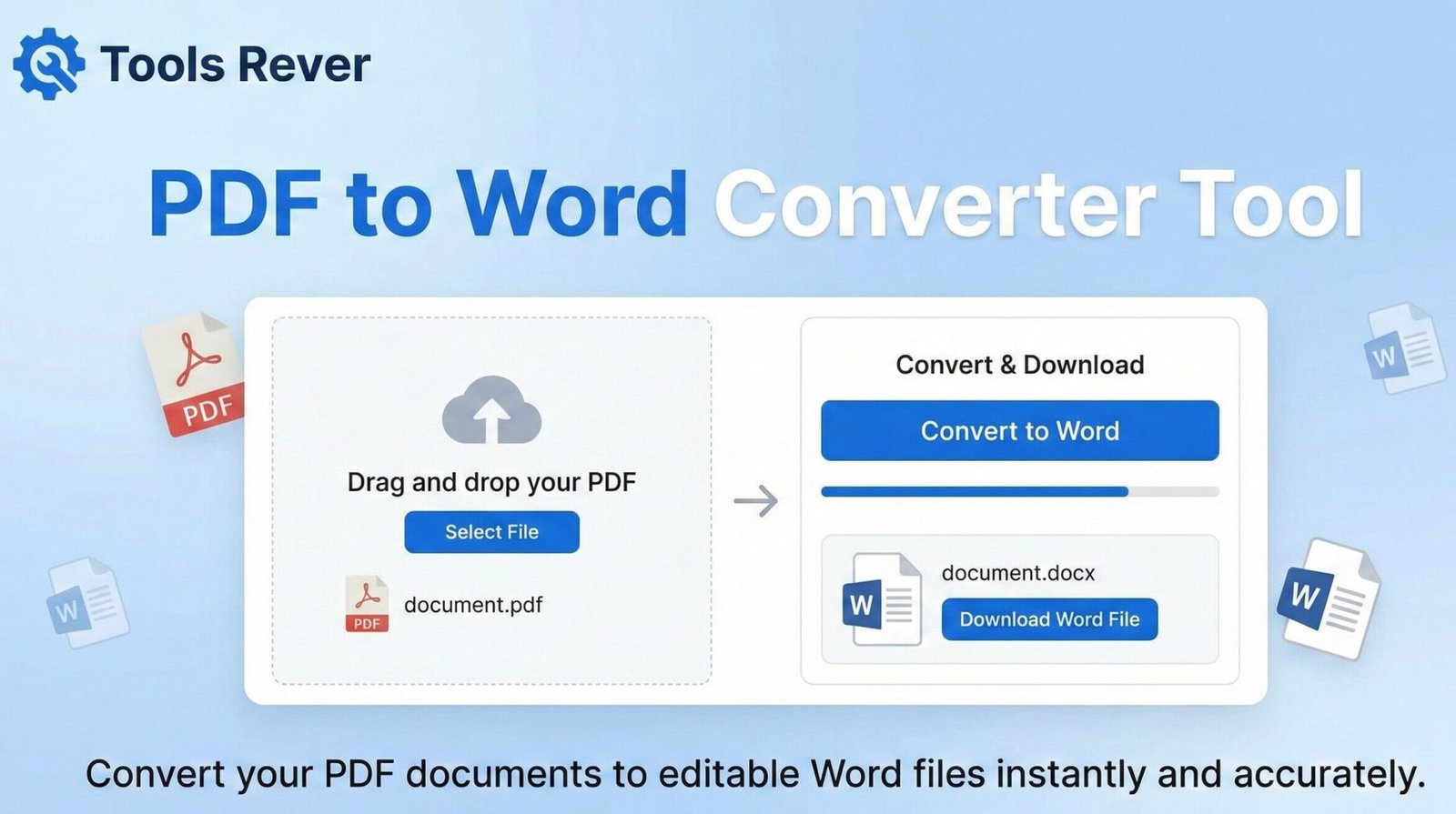
PDF to Word Converter
Convert your PDF documents to editable Word files quickly and accurately
About This Tool
Our PDF to Word converter transforms PDF documents into editable Microsoft Word files while preserving the original formatting, images, and text. This tool is perfect for when you need to edit content originally created in PDF format.
The converter maintains the layout, fonts, and formatting of your original document, ensuring that you can seamlessly continue working with your content in a familiar Word environment.
Upload Your PDF File
Drag & drop your PDF file here or click to browse
How to Use
Features
- High-quality conversion with preserved formatting
- Fast processing speed
- Supports multi-page PDF documents
- Maintains tables, images, and complex layouts
- 100% secure file handling
PDF to Word Converter: Edit PDF Content Easily
Convert PDF to Word documents online for free! Our tool preserves formatting, tables, and images. Edit PDF content easily in Microsoft Word. No installation needed.
PDF to Word Converter: Unlock Your Documents for Easy Editing and Formatting
Have you ever received an important PDF document that needed just one small edit, but found yourself completely locked out from making changes? This frustrating scenario is all too common in today’s digital workplace. PDFs are perfect for preserving formatting but notoriously difficult to edit.
A PDF to Word Converter is the essential bridge between these two worlds, transforming static, uneditable PDF files into fully editable Microsoft Word documents. This powerful online tool empowers students, professionals, and businesses to extract content, modify text, update information, and repurpose existing documents without starting from scratch. Whether you need to edit a contract, update a report, or extract data from a PDF form, this converter gives you the freedom to work with your content the way you need to.
What is a PDF to Word Converter and How Does It Work?
A PDF to Word Converter is a specialized software tool that analyzes the content of a Portable Document Format (PDF) file and reconstructs it into an editable Word document format (.doc or .docx). The process involves sophisticated technology to interpret the various elements within your PDF.
The conversion process typically follows these steps:
- File Analysis: The tool scans the PDF file, identifying text, images, tables, and formatting elements.
- Content Extraction: It extracts the textual content and recognizes the structural layout.
- Format Reconstruction: Using advanced algorithms, it recreates the document structure in Word format, applying similar fonts, spacing, and alignment.
- Output Generation: The tool produces a downloadable Word document that mirrors the original PDF as closely as possible.
Using our PDF to Word Converter eliminates the need to manually retype entire documents, saving you hours of tedious work and ensuring accuracy in the transferred content.
Why PDF to Word Converter to Word? Essential Use Cases
The ability to convert PDF to Word documents unlocks countless practical applications across various professions and personal projects.
For Students and Academics
Academic work often involves building upon existing research and documents.
- Edit Lecture Notes: Convert PDF lecture slides to add your own notes and explanations directly in the document.
- Update Research Papers: Modify existing papers or thesis chapters without retyping entire sections.
- Create Study Guides: Extract relevant sections from multiple PDF textbooks to compile personalized study materials.
For Business Professionals
Efficiency in business often means working with existing documents rather than creating new ones from scratch.
- Modify Contracts and Proposals: Update terms, dates, or client information in existing business documents.
- Edit Reports and Presentations: Refresh outdated data in quarterly reports or repurpose content for new presentations.
- Repurpose Marketing Materials: Update brochures, flyers, and fact sheets with new information or branding.
For Writers and PDF to Word Converter
Content creation frequently involves revising and repurposing existing work.
- Edit Manuscripts: Convert PDF galley proofs or edited manuscripts to implement changes quickly.
- Update Blog Content: Transform PDF articles into editable format for website publication or updating.
- Translate Documents: Convert PDFs to Word for easier translation work, as most translation software works better with editable formats.
Key Features of a High-Quality PDF to Word Converter
Not all conversion tools are created equal. A superior converter, like the one we provide, offers several critical features that ensure professional results.
Format Preservation
The most important feature is the ability to maintain original formatting. This includes:
- Font styles and sizes
- Paragraph alignment and spacing
- Bullet points and numbered lists
- Table structures and borders
High Accuracy OCR (Optical Character Recognition)
For scanned PDFs (which are essentially images of text), OCR technology is essential. It analyzes the image and converts the visual text into actual editable characters. Without OCR, scanned documents would remain as uneditable pictures in your Word file.
Image Retention
A quality converter will properly extract and place images from your PDF to Word Converter into the Word document, maintaining their position and resolution.
Batch Processing
The ability to convert multiple PDF files to Word simultaneously is a huge time-saver for users dealing with large volumes of documents.
Security and Privacy
A trustworthy converter processes files securely and automatically deletes them from servers after conversion, protecting your sensitive information.
Just as our PDF converter helps you modify documents, our Image Resizer tool helps you perfect visual elements for any project.
Step-by-Step Guide: How to PDF to Word Converter to Word
Using our converter is a straightforward process that takes just moments:
Step 1: Access the Tool
Navigate to our PDF to Word Converter tool on any device with a web browser.
Step 2: Upload Your PDF
Click the “Upload” or “Select File” button and choose the PDF file you want to convert from your computer, or drag and drop it directly into the conversion area.
Step 3: Configure Settings (Optional)
Depending on the tool, you may have options for:
- Enabling enhanced OCR for scanned documents
- Choosing output format (DOC or DOCX)
- Selecting specific pages for conversion
Step 4: Initiate Conversion
Click the “Convert” or “Start” button. The tool will process your file, typically taking just seconds depending on file size and complexity.
Step 5: Download Your Word Document
Once processing is complete, a “Download” button will appear. Click it to save your new editable Word document to your device.
Understanding the Technology: How PDF to Word Conversion Really Works
The technical process behind PDF to Word conversion is more complex than it appears. According to the International Digital Publishing Forum, which originally developed the PDF standard, PDF files contain both vector and raster graphics, fonts, and other elements that make them platform-independent.
Conversion tools use several approaches:
Text-Based Conversion: For digital PDFs (those created from Word or other text-based programs), the converter can often extract the actual text and formatting instructions directly from the file structure.
OCR Technology: For scanned PDFs, Optical Character Recognition engines analyze the image patterns to identify letters, words, and paragraphs. Advanced OCR can even recognize multiple columns, tables, and complex layouts.
Layout Analysis: Sophisticated algorithms analyze the spatial relationships between different elements on the page to recreate the document structure accurately in Word.
Common Conversion Challenges and Solutions
Even with advanced technology, some conversion challenges can occur:
Formatting Issues
Complex layouts with multiple columns, text boxes, or unusual spacing may not convert perfectly.
Solution: After conversion, plan to spend a few minutes adjusting formatting in Word. The alternative—retyping the entire document—would take considerably longer.
Font Substitution
If the original PDF uses fonts not available on your system, the converter may substitute similar fonts.
Solution: You can change the fonts in Word to match your preferences or install the original fonts on your computer.
Scanned Document Quality
Low-resolution scans or documents with poor contrast can reduce OCR accuracy.
Solution: Whenever possible, work with high-quality scans (300 DPI or higher) with clear text and good contrast for best results.
Frequently Asked Questions (FAQs)
Is it legal to convert PDF to Word?
Can I convert scanned PDF documents to Word?
Will the converted Word document look exactly like my original PDF?
Conclusion: Reclaim Control Over Your Documents Today
A PDF to Word Converter is more than just a convenience—it’s a productivity powerhouse that breaks down the barriers between document preservation and content manipulation. By transforming static PDFs into flexible, editable Word documents, this tool gives you the freedom to update, customize, and repurpose content without constraints. In our fast-paced digital world, the ability to quickly adapt existing documents is not just an advantage; it’s a necessity for staying efficient and competitive.
Stop letting uneditable PDFs slow you down. Embrace the flexibility of seamless document conversion. Ready to unlock your PDF content? Use our free, high-quality PDF to Word Converter tool now and transform your static documents into fully editable Word files in just seconds!