
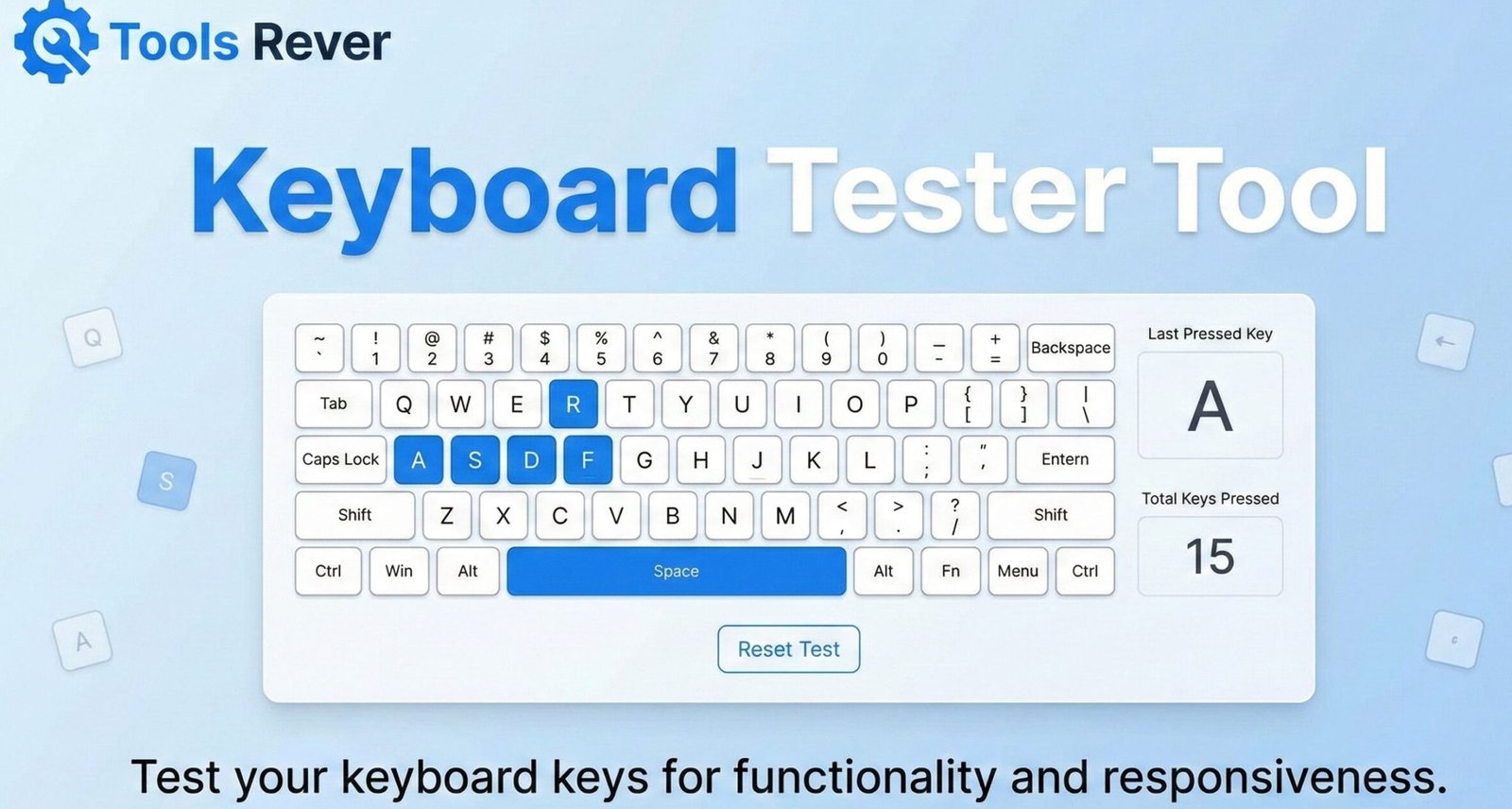
Keyboard Tester
Test your keyboard functionality to identify any keys that aren’t working properly. This tool detects keystrokes and displays which keys have been pressed, helping you verify that all keys on your keyboard are functioning correctly.
How to use: Click anywhere on this page and start pressing keys on your keyboard. Each key you press will be highlighted on the virtual keyboard below. Try to press all keys to ensure they’re working properly.
Keyboard Tester Online: Check Keys & Functionality
Test your keyboard instantly online! Our Keyboard Tester checks every key, modifier, and LED light. Perfect for troubleshooting, gaming, and new keyboards.
Keyboard Tester: The Ultimate Diagnostic Tool for Your Keyboard’s Health
Have you ever spilled liquid on your keyboard, noticed certain keys behaving erratically, or wanted to verify a new keyboard works perfectly before the return window expires? Diagnosing keyboard issues can be frustrating when you’re not sure if the problem is with the hardware, software, or your imagination. This is where an online Keyboard Tester becomes your first line of defense. A Keyboard Tester is a web-based diagnostic tool that provides a real-time visual representation of your keyboard, lighting up each key as you press it. It allows you to systematically check every single key, modifier, and function button to identify stuck keys, unresponsive switches, or faulty connections with 100% certainty, saving you time, money, and unnecessary frustration.
What is a Keyboard Tester and How Does It Work?
A Keyboard Tester is an interactive web application that mimics the layout of your keyboard on the screen. It uses JavaScript to listen for keydown and keyup events from your physical keyboard.
The technology is both simple and brilliant:
- Event Listening: The tool runs in your browser and listens for keyboard input events.
- Visual Feedback: When you press a key on your physical keyboard, the corresponding key on the virtual keyboard displayed on your screen lights up, changes color, or shows a press count.
- Comprehensive Detection: It tests regular alphanumeric keys (A-Z, 0-9), modifier keys (Shift, Ctrl, Alt), function keys (F1-F12), the numpad, and even media keys on advanced testers.
- No Installation Required: Being web-based, it works on any operating system (Windows, macOS, Linux) without downloading software.
Using our Keyboard Tester tool provides immediate, unambiguous feedback about your keyboard’s condition, eliminating the guesswork from hardware troubleshooting.
Why Every Computer User Needs a Keyboard Tester
Keyboard issues are among the most common computer problems. Having a reliable testing tool is essential for several reasons.
Troubleshooting Hardware Issues
When keys start double-typing, not responding, or sticking, a keyboard tester instantly confirms the problem. This helps you decide whether to clean the keyboard, replace individual switches, or buy a new one altogether.
Verifying New Keyboard Purchases
Before the return period expires on a new keyboard, it’s wise to test every key. Manufacturing defects do happen, and a thorough test ensures you don’t discover a faulty key months later when it’s too late to return.
Gaming Performance Optimization
For gamers, every keypress matters. A keyboard tester helps ensure that anti-ghosting and N-key rollover features are working correctly, guaranteeing that all your complex key combinations will register during intense gameplay.
Cleaning and Maintenance Verification
After cleaning your keyboard, especially with mechanical keyboards where keys can be removed, a tester confirms that all keys were properly reassembled and are functioning correctly.
Key Features of a Comprehensive Keyboard Tester
A basic tester might show if a key works. A professional tool, like the one we provide, offers detailed diagnostics.
1. Real-Time Visual Feedback
The most important feature is immediate visual confirmation. Each key should highlight the moment it’s pressed, providing instant reassurance that the switch and circuitry are functioning.
2. Modifier Key Status Display
Advanced testers show the status of modifier keys (Shift, Ctrl, Alt, Windows/Command). This is crucial for diagnosing issues with keyboard shortcuts that are essential for productivity.
3. Key Press Counter
This feature counts how many times each key has been pressed. It’s perfect for testing for “chattering” (a key that registers multiple times from one press) or for stress-testing new keyboards.
4. N-Key Rollover and Anti-Ghosting Test
This specialized test checks how many keys can be pressed simultaneously and still register correctly. For gamers and fast typists, 6-key rollover or full N-key rollover is essential to prevent “ghost” keypresses.
5. Multiple Keyboard Layout Support
The tool should recognize and display different layouts like QWERTY, AZERTY, QWERTZ, and various international layouts to ensure accurate key mapping.
Just as a Keyboard Tester ensures your primary input device works perfectly, having well-formatted images is key for visual content. For that, use our Image Resizer tool.
How to Use Our Online Keyboard Tester: A Step-by-Step Guide
Using our tool is straightforward, but following a systematic approach ensures you don’t miss anything.
Step 1: Prepare Your Keyboard
Ensure your keyboard is connected properly. For wireless keyboards, check the battery level and connection. Clean visible debris from between keys if necessary.
Step 2: Access the Tester
Navigate to our Keyboard Tester page. The tool loads instantly without any installation.
Step 3: Test Alphanumeric Keys
Start by pressing each letter key (A-Z) and number key (0-9) in sequence. Watch the virtual keyboard to ensure each one lights up consistently.
Step 4: Test Modifier and Function Keys
Press Shift, Ctrl, Alt, Caps Lock, Tab, and the function keys (F1-F12). These are often used in combinations, so their individual functionality is critical.
Step 5: Test Special Keys and Numpad
Check the arrow keys, Home, End, Page Up, Page Down, and if you have a numpad, test all those keys including Num Lock.
Step 6: Test Key Combinations
Press common combinations like Ctrl+C, Ctrl+V, Shift+Arrow keys to ensure modifier keys work correctly in combination with other keys.
Common Keyboard Problems and How to Identify Them
Unresponsive Keys
If a key doesn’t light up on the tester at all, it could be due to:
- Physical debris or damage under the keycap
- A faulty switch (common in mechanical keyboards)
- A broken connection in the keyboard’s circuitry
Sticky or Repeated Keys (Key Chattering)
When a key registers multiple times from a single press, our tester’s press counter will clearly show this. This is often caused by:
- Dirt or liquid residue under the key
- Worn-out mechanical switches
- Failing keyboard membrane
Ghost Keypresses
When pressing certain key combinations causes unexpected keys to register, this indicates a ghosting issue. Our N-key rollover test specifically identifies this limitation in cheaper keyboards.
Intermittent Connectivity
If keys work sometimes but not others, especially on wireless keyboards, this usually indicates:
- Low battery power
- Wireless interference
- A faulty USB receiver or Bluetooth connection
Keyboard Technologies: Understanding What You’re Testing
Different keyboard technologies have different failure modes that our tester can help identify.
Membrane Keyboards
The most common and affordable type. They use a rubber dome under each key. Common issues include unresponsive keys (from worn domes) and overall mushy feel after extensive use.
Mechanical Keyboards
These use individual physical switches under each keycap. They’re prized for durability and tactile feedback but can suffer from:
- Switch failure (individual keys stop working)
- Key chattering (switches registering multiple times)
- LED failure (on backlit models)
Scissor-Switch Keyboards
Common in laptops and low-profile keyboards. They use a scissor-like mechanism. Issues often involve:
- Broken scissor mechanisms
- Unresponsive keys from worn contacts
- Keys falling off due to broken clips
According to a study on keyboard reliability, mechanical keyboards typically last 50-70 million keystrokes per switch, significantly longer than membrane keyboards.
Advanced Testing: N-Key Rollover and Anti-Ghosting
For gamers and fast typists, understanding these concepts is crucial.
Ghosting occurs when you press multiple keys simultaneously and the keyboard fails to register some of them or registers keys you didn’t press. This happens because of electrical limitations in the keyboard’s matrix.
N-Key Rollover (NKRO) means that every key on the keyboard is scanned completely independently, so every keypress will be registered correctly regardless of how many other keys are pressed simultaneously.
Our Keyboard Tester includes a special mode where you can press multiple keys at once to verify your keyboard’s capabilities. Gaming keyboards often advertise 6-key rollover or full NKRO as a key feature.
Keyboard Maintenance Tips to Extend Lifespan
Regular testing can catch problems early, but proper maintenance prevents them.
- Regular Cleaning: Use compressed air to remove debris between keys. For deeper cleaning, remove keycaps (if possible) and clean with isopropyl alcohol.
- Avoid Liquids: Keep drinks away from your keyboard. Spills are a leading cause of keyboard failure.
- Proper Storage: When not in use, cover your keyboard to prevent dust accumulation.
- Gentle Use: Avoid excessive force when typing. Mechanical keyboards require less force than membrane keyboards.
- Periodic Testing: Use our Keyboard Tester monthly to catch issues early, especially if you use your keyboard heavily for work or gaming.
Frequently Asked Questions (FAQs)
Why should I use an online tester instead of a text editor?
The tester isn’t detecting any key presses. What’s wrong?
Conclusion: Ensure Peak Keyboard Performance with a Simple Test
A Keyboard Tester is more than just a troubleshooting tool—it’s an essential utility for anyone who relies on their computer for work, gaming, or creative projects. By providing immediate, visual confirmation of your keyboard’s functionality, it eliminates uncertainty and empowers you to make informed decisions about repairs, cleaning, or replacement. In a world where keyboards are our primary interface with digital systems, ensuring they function flawlessly is not just convenient—it’s essential for productivity and enjoyment.
Don’t tolerate sticky, unresponsive, or unreliable keys any longer. Ready to diagnose your keyboard with certainty? Use our free, comprehensive Keyboard Tester tool now and give yourself the confidence of knowing your keyboard is in perfect working order!