
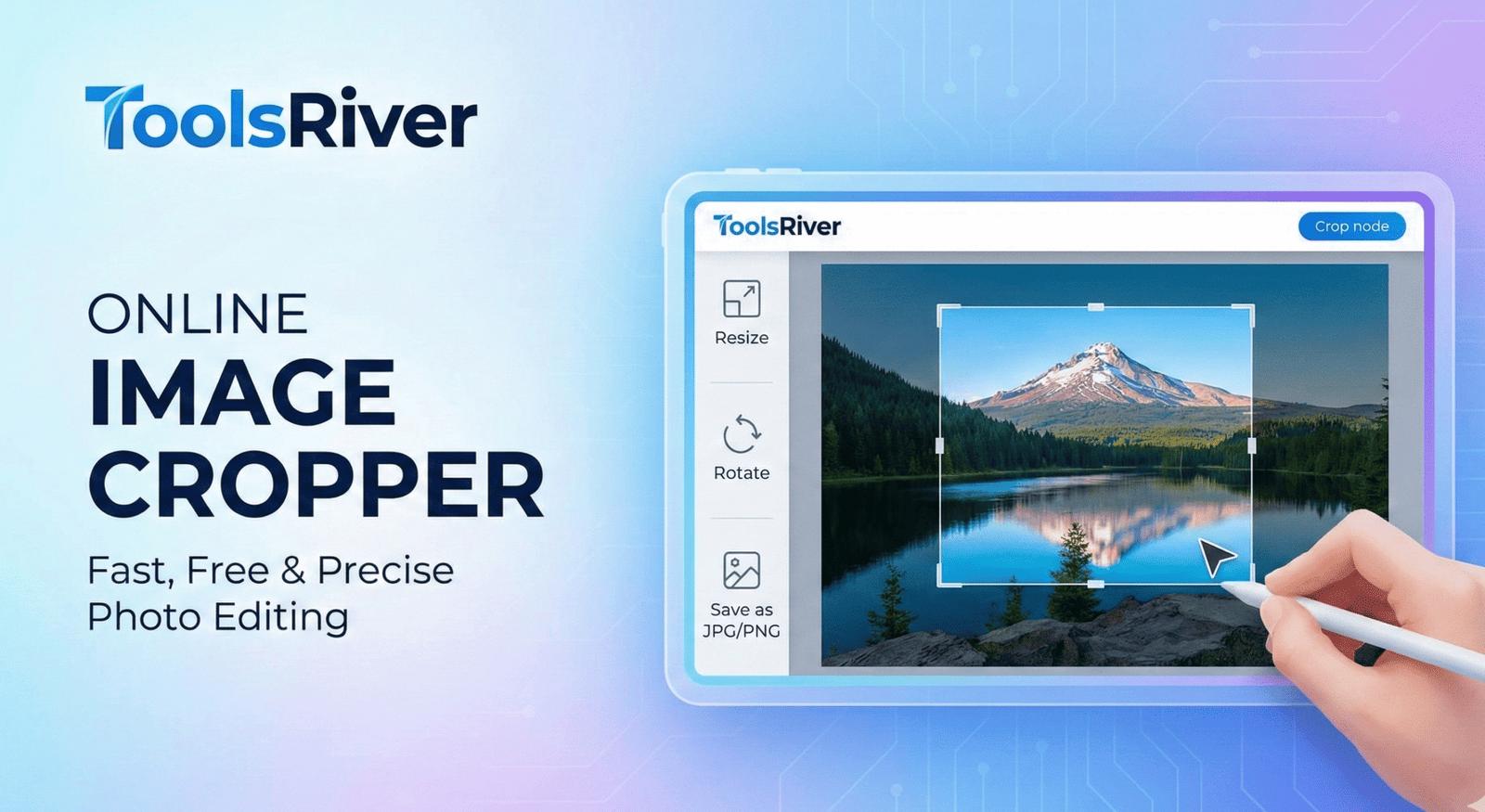
✂️ Image Cropper
Crop your images with precise aspect ratios and custom dimensions
Drop your image here or click to browse
Supports JPG, PNG, GIF, WebP, and other common formats
📋 How to Use:
- Upload an image using the button above or drag & drop
- Select an aspect ratio or choose “Custom” for free cropping
- Click and drag on the image to create a crop selection
- Adjust the selection by dragging the corners or edges
- Click “Crop Image” to apply the crop
- Download your cropped image
🖼️ Crop Area
⚙️ Crop Settings
Selection Info
No selection
Position: 0, 0
Aspect: Free
Original Image
Cropped Image
Master Image Cropping: Free Online Tool & Pro Tips
Unlock the power of image cropping. Use our free online tool to improve composition, fit social media, and create stunning visuals. Expert guide inside.
Introduction
Have you ever looked at a photograph and felt something was off? Maybe the subject was lost in a busy background, or the horizon cut the image in a jarring way. Often, the solution isn’t a fancy filter or complex edit—it’s a simple, powerful crop. Image cropping is the foundational editing technique that can transform a snapshot into a masterpiece. This definitive guide will explore not just how to crop a picture, but the art and science behind it, empowering you to use our free image cropper tool with the eye of a professional.
What is Image Cropping? More Than Just Cutting
At its core, image cropping is the process of removing portions of an image to improve framing, emphasize a subject, or change its aspect ratio. Think of it as a digital zoom and reframe function.
It’s the single most effective way to eliminate distractions and guide the viewer’s eye.
A powerful image cropper allows you to:
- Change the focal point of a photo.
- Remove unwanted objects from the edges.
- Adjust the aspect ratio for different platforms.
- Straighten a skewed horizon.
- Create a stronger visual narrative.
Why Image Cropping is Non-Negotiable for Quality Visuals
In a world dominated by visual content, a poorly composed image can undermine your message. Whether you’re a blogger, a social media manager, or an e-commerce store owner, image cropper is essential.
Data shows that images with strong, clear focal points receive up to 40% more engagement on social media. Furthermore, e-commerce sites report that product images cropped to highlight the item against a clean background can increase conversion rates by eliminating visual clutter that distracts from the purchase decision.
Using an image cropper is not about fixing mistakes; it’s about intentional design.
How to Use Our Free Online Image Cropper: A Step-by-Step Walkthrough
Our tool is designed for speed and precision. Here’s how to achieve the perfect crop every time.
- Upload Your Image: Click the upload area and select your file. We support JPG, PNG, and WEBP formats. The process begins instantly.
- Select Your Cropping Method: You have two main options.
- Freeform Crop: Click and drag the corners of the bounding box to select any area you want.
- Preset Aspect Ratio: Choose from a list of common ratios like Square (1:1), Landscape (16:9), or Portrait (4:5) for social media.
- Fine-Tune Your Selection: Reposition the image within the crop box by clicking and dragging. Ensure your subject is perfectly framed.
- Apply and Download: Hit the “Crop Image” button. Your newly cropped photo will be generated. Click “Download” to save the high-quality result to your device.
It’s that simple. In under 10 seconds, you can have a professionally framed image.
Mastering Composition: The Art Behind the Crop
This is where a simple crop becomes a powerful creative tool. Understanding basic composition rules will transform how you use an image cropper.
The Rule of Thirds: Your New Best Friend
Imagine your image is divided by two equally spaced horizontal and vertical lines, creating a nine-part grid. The Rule of Thirds suggests placing the most important elements of your scene along these lines or at their intersections.
Our image cropper tool includes a Rule of Thirds grid overlay to help you compose your shot perfectly. Placing a subject’s eyes at the top intersection, or a horizon on the top or bottom line, often creates a more balanced and engaging image than centering the subject.
Leading Lines and Negative Space
Image cropping can enhance natural leading lines, like roads or fences, to draw the viewer’s eye through the photograph. Conversely, you can use cropping to create or amplify negative space—the empty areas around your subject.
This technique is highly effective for minimalist designs, product shots, and adding a sense of scale or isolation.
Filling the Frame for Impact
Don’t be afraid to get close. Often, amateur photographers stand too far away from their subject. A tight crop that fills the frame with your subject’s face or a product’s detail can create an incredibly intimate and powerful visual.
This eliminates all background distractions and forces the viewer to engage with what matters most.
Technical Aspects: Resolution, Pixels, and Quality
A common fear when cropping is losing image quality. Understanding the relationship between crop and resolution is key.
When you crop, you are reducing the total number of pixels in the image. If you take a small section of a 12-megapixel photo and then try to print it as a poster, it will likely appear pixelated because you’ve stretched too few pixels over a large area.
Best Practice: Always start with the highest resolution image possible. Crop for your intended use—a tightly cropped image from a modern smartphone camera is more than sufficient for web and social media, which typically require much lower resolutions than print.
If you find your cropped image is too large for web use, you can easily resize it for a specific platform using our dedicated image-resizer tool.
Creative Uses for an Image Cropper You Haven’t Considered
Beyond the basics, an image cropper can be used for innovative projects.
- Create a Photo Series: Crop a single wide-angle shot into multiple, focused images that tell a sequential story.
- Design Social Media Collages: Crop individual images to uniform sizes for a clean, organized collage layout.
- Extract Patterns: Zoom in on a small section of a fabric, wall, or natural element to create an abstract pattern or background texture.
- Reframe Old Photos: Revisit your old photographs and use cropping to apply modern composition techniques, giving them a new life.
Image Cropping vs. Other Editing Tools
It’s important to understand what an image cropper can and cannot do.
- Cropping vs. Resizing: Cropping removes parts of the image to change its composition and dimensions. Resizing scales the entire image up or down without removing any content. You often need both tools in tandem.
- Cropping vs. Background Removal: A crop tool can only remove background in a rectangular shape. To remove a background around a complex shape (like a person’s hair), you would need a specialized background remover tool. For a deep dive into advanced techniques, the American Society of Media Photographers (ASMP) offers resources on professional post-processing workflows.
Best Used For: General references to high-quality, community-vetted photography tutorials. PetaPixel is a major publication in the photography space, and linking here shows you are connected to the broader community’s knowledge.
Frequently Asked Questions (FAQs)
I cropped and saved my image, but I want the original back. Can I undo it?
What is the best aspect ratio for Instagram feed posts?
Can I crop a picture without losing quality?
Conclusion: Crop Your Way to Better Images
Image cropper is far more than a basic edit it’s a fundamental skill for visual communication. It empowers you to take control of your narrative, eliminate distractions, and present your work with professionalism and intent. By understanding both the technical and artistic principles, you can elevate your photos from simple records to compelling stories.
Our free online image cropper tool is designed to put this power at your fingertips. It’s fast, precise, and requires no technical expertise.
Ready to see the difference? Open our Image Cropper tool now and transform your next photo in seconds!