
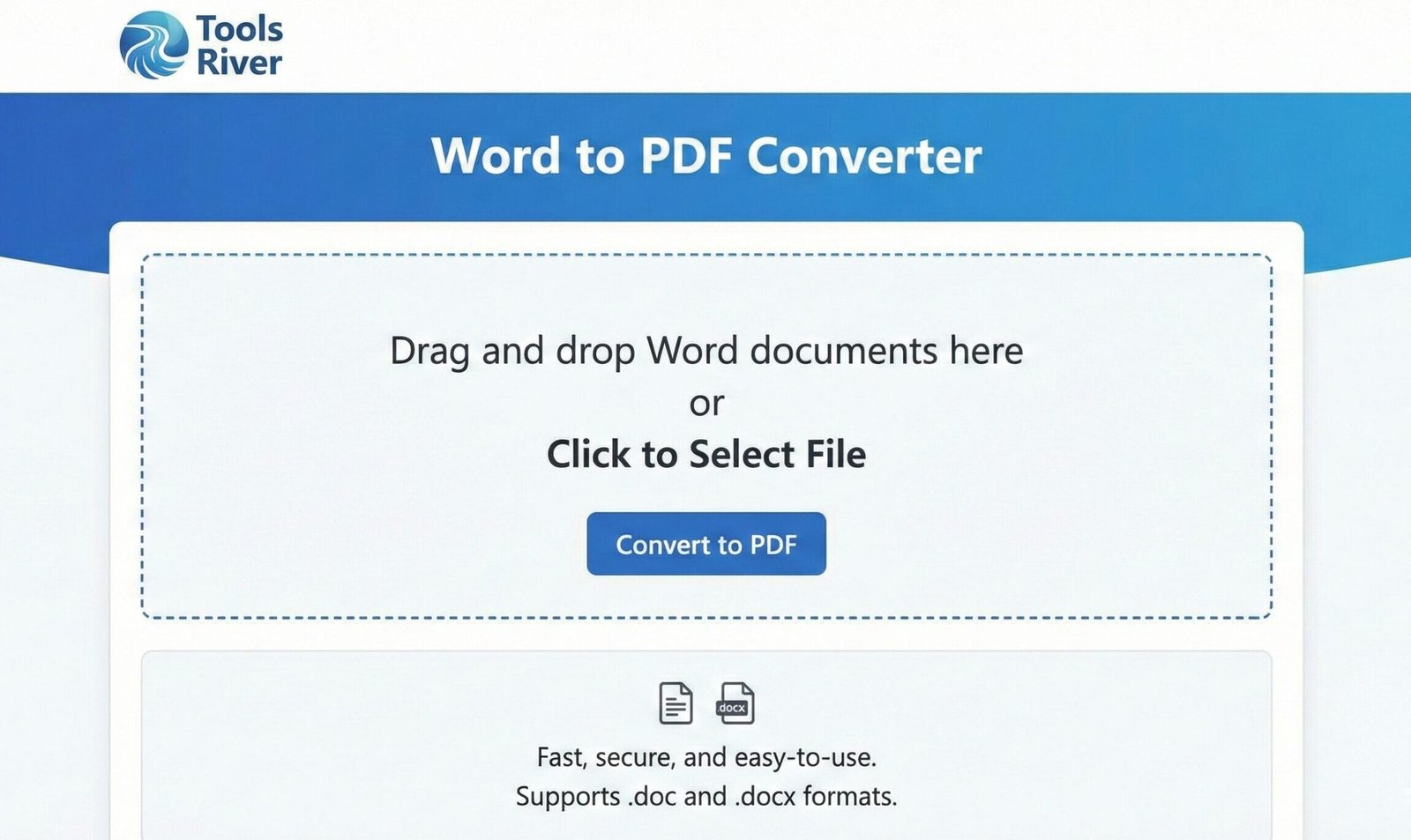
Word to PDF Converter
Convert your Word documents to professional PDF files with ease
About This Tool
Our Word to PDF converter transforms Microsoft Word documents (.docx, .doc) into high-quality PDF files that maintain the original formatting and layout. This tool is perfect for creating professional documents, ensuring compatibility across different platforms, or archiving your important files.
Convert your Word documents to the universally accessible PDF format while preserving all formatting elements, including fonts, images, tables, and hyperlinks.
Upload Your Word File
Drag & drop your Word document here or click to browse
How to Use
Features
Exact Formatting
Preserves the exact layout, fonts, and formatting of your Word documents
Multiple Formats
Supports .doc, .docx, and other Word formats
Fast Conversion
Quick processing for files of all sizes
Secure Processing
Your documents are processed securely and privately
Word to PDF Converter | Free, Secure & Instant Tool
Convert Word to PDF instantly for free! Our secure online tool preserves formatting, locks documents, and works on any device. No watermarks, no registration.
The Ultimate Guide to Converting Word to PDF: Why It’s Essential
Have you ever spent hours perfectly formatting a Microsoft Word document, only to have it look completely different when your colleague or client opens it? Fonts change, images shift, and your professional work suddenly appears messy. This common frustration is exactly why converting a Word to PDF is a non-negotiable step in today’s digital workflow. A PDF (Portable Document Format) file looks the same on every device, everywhere. In this guide, we’ll explore why using a reliable Word to PDF Converter is crucial, how it works, and how you can use our free tool at ToolsRiver to streamline your document sharing forever.
What is a Word to PDF Converter?
A Word to PDF Converter is a specialized software or online tool that transforms a document created in Microsoft Word (.doc or .docx) into a PDF file. Think of it as taking a dynamic, editable document and turning it into a digital printout.
This “digital printout” is locked in place.
The formatting, fonts, images, and layout remain exactly as you intended. This process ensures consistency and professionalism, making it the global standard for sharing official documents.
Our online converter at ToolsRiver does this instantly in your web browser.
You don’t need to install expensive software like Adobe Acrobat. The conversion happens in the cloud, saving you time and storage space on your computer.
Top 5 Reasons You Need to Convert Word to PDF
Why has PDF become the universal language for documents? The benefits are clear and impactful for students, professionals, and businesses alike.
1. Formatting Preservation is Guaranteed.
This is the number one reason. Word documents can look different depending on the version of Word, the installed fonts, or even the operating system.
A PDF eliminates this variability.
Your margins, columns, headers, and footers will stay perfectly aligned. This is critical for resumes, contracts, and reports.
2. Enhanced Security and Control.
PDFs offer security features that Word documents simply can’t match. Once you convert your file, you can add layers of protection.
You can prevent others from editing, copying text, or even printing the document.
This helps protect your intellectual property and sensitive information. It gives you control over how your document is used after you send it.
3. Universal Compatibility and Accessibility.
Almost every device in the world—Windows PCs, Macs, smartphones, and tablets—can open a PDF file without requiring specialized software.
Most web browsers can display PDFs natively.
This eliminates the “I can’t open your file” problem. It ensures your recipient can always view the document as you intended, making collaboration seamless.
4. Professionalism and a Finalized Appearance.
Sending a PDF signals that your document is complete and official. It’s the expected format for things like job applications, legal documents, and academic papers.
A Word file feels editable and unfinished.
A PDF communicates that the content is final and ready for review or action. This small step significantly enhances your professional image.
5. Reduced File Size for Easy Sharing.
PDFs can often be more compressed than their original Word counterparts. This is especially true for documents containing images.
A smaller file size makes it easier to email.
It also saves storage space and loads faster when uploaded to websites or shared via messaging apps. For optimizing images before adding them to your documents, you can use our free Image Resizer tool.
How to Use Our Free Online Word to PDF Converter
Our tool at ToolsRiver is designed for maximum simplicity and speed. You can convert your document in just three easy steps without any technical knowledge.
Step 1: Upload Your Word File
Click the “Upload” or “Select File” button on our tool’s interface. You can drag and drop your .doc or .docx file directly into the browser window. Our platform supports files from your computer, Google Drive, and Dropbox.
Step 2: Initiate the Conversion
Once your file is uploaded, click the “Convert” or “Convert to PDF” button. Our secure servers will instantly process your document. The speed depends on your internet connection and the file size, but it’s typically a matter of seconds.
Step 3: Download Your New PDF File
After the processing is complete, a “Download” button will appear. Click it to save the brand-new PDF file directly to your device. The conversion is now complete, and your file is ready to use.
It’s that simple. No registration, no watermarks, and completely free.
Common Scenarios: When Converting to PDF is a Must
Understanding the practical applications can help you integrate this tool into your daily routine effectively.
The Job Applicant:
You’ve crafted the perfect resume in Word. Before sending it to a potential employer, you convert it to PDF. This ensures the hiring manager sees a clean, professional layout, no matter what device they use. It also prevents accidental edits.
The Student:
You need to submit a crucial essay or thesis. Your university requires a PDF to ensure all formatting (like double-spacing and citations) is preserved for grading. Converting it guarantees you meet the submission guidelines perfectly.
The Business Professional:
You are sending a sales proposal or a contract to a client. A PDF version looks more formal and prevents the client from making unauthorized changes to the terms or pricing before signing. It projects an image of authority and finality.
The Blogger or Marketer:
You have created a lead magnet, like an eBook or a whitepaper, in Word. Before offering it on your website, you convert it to PDF. This creates a more polished, readable product that your audience will value and associate with quality, much like a professionally published book.
FAQs About Converting Word to PDF
Q1: Is my data safe when using your online converter?
Q2: Can I convert a PDF back to a Word document?
Q3: Does the converter work on mobile phones?
Conclusion: Streamline Your Workflow with a Single Click
In a world where consistency, security, and professionalism are paramount, the simple act of converting a Word to PDF is more than just a technical step—it’s a best practice. It protects your work, presents it in the best possible light, and ensures universal accessibility. By understanding the “why” and “how,” you can use this powerful process to your advantage.
Don’t let formatting woes undermine your hard work.
Use our free, instant, and secure Word to PDF Converter at ToolsRiver today. Experience the peace of mind that comes with knowing your documents will always look perfect, no matter where they are opened. Convert your first file now
Secure Word to PDF Converter: Safe & Private Online Tool