
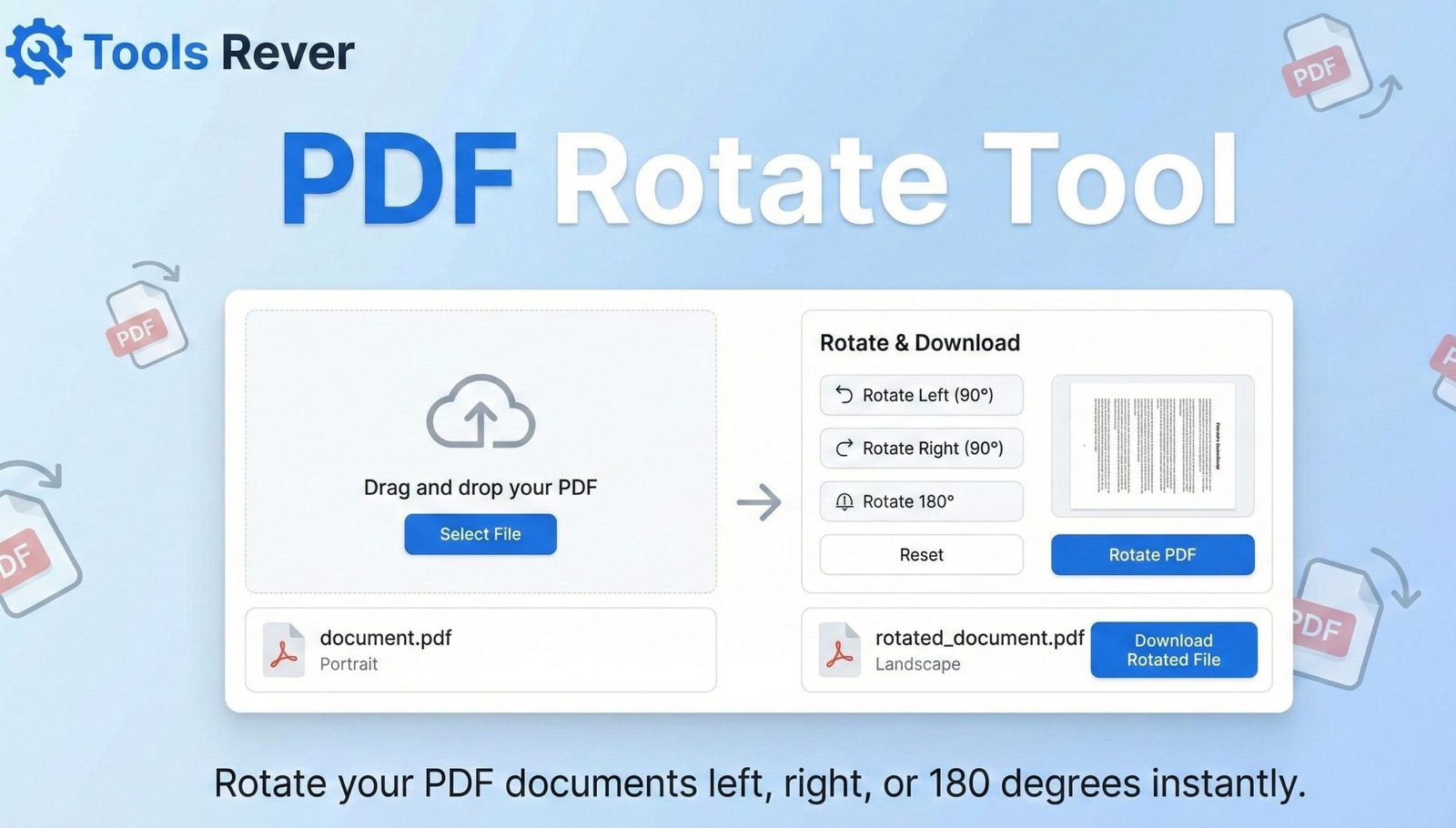
PDF Rotate Tool
Rotate pages in your PDF documents to the correct orientation
About This Tool
The PDF Rotate Tool allows you to quickly fix incorrectly oriented pages in your PDF documents. Whether you have scanned pages that are sideways or upside down, this tool makes it easy to rotate individual pages or your entire document to the correct orientation.
Simply upload your PDF, select the pages you want to rotate, choose your rotation angle, and download the corrected document.
Upload Your PDF File
Drag & drop your PDF file here or click to browse
How to Use
Common Uses
- Fixing Scanned Documents: Correct the orientation of pages that were scanned in the wrong direction
- Landscape Pages: Rotate specific pages to landscape orientation for better viewing
- Mixed Orientations: Standardize documents that contain a mix of portrait and landscape pages
- Presentation Materials: Rotate slides or charts for proper display in presentations
- Reading Comfort: Adjust the orientation to make reading more comfortable on different devices
PDF Rotate Tool: Rotate Pages Online for Free
Fix upside-down PDF pages instantly! Our free PDF Rotate Tool lets you rotate single or multiple pages online. No watermarks, no registration needed.
PDF Rotate Tool: Fix Misoriented PDF Pages in Seconds
Have you ever scanned a document only to find half the pages are upside down? Or received a PDF where crucial diagrams or charts are displayed sideways, forcing you to crane your neck or manually rotate each page in a clunky viewer? This common frustration with misaligned PDF pages can disrupt your workflow and look unprofessional when sharing documents.
A PDF Rotate Tool is the simple, elegant solution to this everyday digital problem. This specialized online utility allows you to quickly correct the orientation of any page within a PDF file, ensuring every page displays correctly whether you’re viewing on screen, printing, or sharing with colleagues. With just a few clicks, you can transform a messy, disorienting document into a perfectly formatted, professional-looking PDF.
What is a PDF Rotate Tool and How Does It Work?
A PDF Rotate Tool is a web-based application specifically designed to modify the page orientation within a Portable Document Format (PDF) file. Unlike simply rotating your screen or using a PDF viewer’s temporary display rotation, this tool permanently changes the page’s orientation data within the file itself.
The process is both secure and efficient:
- Upload: You select and upload your PDF file to the tool’s secure server.
- Preview & Select: The tool typically displays a thumbnail preview of each page, allowing you to select which pages need rotation.
- Rotate: You choose the rotation angle (90° clockwise, 90° counter-clockwise, or 180°) for each selected page.
- Process: The tool’s backend engine reprocesses the PDF file, embedding the new orientation data directly into the document structure.
- Download: You receive a new, corrected PDF file with the pages permanently rotated.
Using our PDF Rotate Tool ensures that your corrections are saved within the file, so it will always display correctly, no matter which device or software opens it.
Why Do PDF Pages End Up Upside Down or Sideways?
Understanding the root causes of misoriented PDFs can help you prevent them in the future.
Scanner and Multifunction Printer Issues
This is the most common culprit. When scanning double-sided documents or using an automatic document feeder (ADF), pages can be fed in the wrong orientation. If the scanner software isn’t configured to auto-rotate, every other page might end up upside down.
Document Creation from Multiple Sources
When compiling a PDF from various sources—such as combining portrait-oriented reports with landscape-oriented spreadsheets or charts—the original page orientations can be preserved, creating an inconsistent reading experience.
Mobile Document Scanning
While apps like Adobe Scan or Microsoft Office Lens are powerful, they can sometimes misjudge the correct orientation, especially in suboptimal lighting conditions.
File Conversion Glitches
Converting a file from another format (like Word, Excel, or image files) to PDF can sometimes result in pages with incorrect orientation metadata.
Key Features of a High-Quality PDF Rotate Tool
Not all online PDF tools are created equal. A robust tool, like the one we provide, offers a suite of user-friendly features.
Selective Page Rotation
The ability to rotate individual pages or a custom selection of pages is crucial. You shouldn’t have to rotate the entire document just to fix one upside-down page.
Multiple Rotation Angles
A good tool offers flexibility:
- 90° Clockwise: To turn a sideways page (leaning left) upright.
- 90° Counter-clockwise: To turn a sideways page (leaning right) upright.
- 180° Flip: To correct a completely upside-down page.
Page Preview Thumbnails
Visual thumbnails of each page make it easy to identify which pages need correction, saving you from having to remember page numbers.
Batch Processing
The capability to apply rotations to multiple pages at once, rather than one-by-one, significantly speeds up the process for large documents.
Security and Privacy
A trustworthy tool processes your files in a secure environment and automatically deletes them from the server after a short period, ensuring your confidential documents remain private.
Step-by-Step Guide: How to Rotate Your PDF Pages
Using our tool is a straightforward process that takes less than a minute for most documents.
Step 1: Access the Tool
Navigate to our PDF Rotate Tool.
Step 2: Upload Your PDF
Click the “Upload” or “Choose File” button and select the PDF you want to fix from your computer. You can also drag and drop the file directly into the browser window.
Step 3: Review the Pages
Once uploaded, the tool will display a grid of thumbnails showing all the pages in your document. Visually scan them to identify any that are sideways or upside-down.
Step 4: Select and Rotate
- Click on the thumbnail of the page you wish to rotate.
- Use the rotation buttons (usually arrows in a circular pattern) to rotate the page to the desired orientation.
- Repeat this for every page that needs correction.
Step 5: Process and Download
Click the “Apply Rotation” or “Save PDF” button. The tool will process your file and provide a “Download” link for your newly oriented PDF.
Just as a PDF Rotate Tool fixes your document’s orientation, ensuring your images are the right size is key for professional documents. For that, you can use our Image Resizer tool.
Who Needs a PDF Rotate Tool? Practical Use Cases
This tool is invaluable across a wide range of professions and personal tasks.
For Office Administrators and Professionals
- Fixing Scanned Contracts: Ensure all pages of a legally binding scanned contract are right-side-up before emailing to clients.
- Preparing Board Reports: Correct any landscape-oriented financial spreadsheets that were inserted into a primarily portrait-oriented report.
For Students and Academics
- Organizing Research Papers: When compiling research from various digital sources, ensure all pages are uniformly oriented for easy reading and printing.
- Submitting Assignments: Avoid losing marks on a digital submission due to poorly formatted, sideways pages.
For Architects and Designers
- Correcting Technical Drawings: Ensure that large-format plans and blueprints, which are often scanned in sections, are all aligned correctly in the final PDF portfolio.
For the Everyday User
- Digitizing Personal Records: Fix the orientation of scanned tax documents, birth certificates, or old letters being preserved in a digital archive.
The Technical Side: How PDF Rotation Works
When you rotate a page using our tool, you are not altering the actual content (the text and images) in a destructive way. Instead, you are modifying the page’s “page dictionary” within the PDF’s structure.
A PDF file is built on a scripting language, and each page object contains a Rotate key. This key tells the PDF viewer software how many degrees to rotate the page when rendering it on screen or for print. Our tool directly edits this value.
For example, if a page is supposed to be rotated 90 degrees clockwise, the tool sets the Rotate value to 90. The PDF viewer then applies this transformation when displaying the file. This is a non-destructive process, meaning the original quality of the text and images is preserved perfectly.
According to the ISO 32000 standard that defines the PDF format, this rotation parameter is a core part of the page object specification, ensuring compatibility across all compliant software.
Common Problems and Solutions When Rotating PDFs
Problem: The Rotated PDF is Much Larger in File Size
Solution: This can happen if the tool “re-rasters” the page (converts it to an image) during rotation. Our tool manipulates the PDF’s internal structure directly, which should not significantly increase the file size.
Problem: Some Text Becomes Blurry After Rotation
Solution: This is a sign of a low-quality tool that is converting vector-based text into a raster image. A high-quality tool like ours preserves the original vector data, ensuring text remains sharp at any rotation.
Problem: The Tool Won’t Upload My File
Solution: Check the file size. Most online tools have a limit (often 50-100MB). Also, ensure the file is not corrupt and is a valid PDF. If the problem persists, try using a different web browser.
Frequently Asked Questions (FAQs)
Is it safe to use your online PDF Rotate Tool?
Can I rotate multiple pages at the same time?
What is the maximum file size for the PDF Rotate Tool?
Conclusion: Perfect Your PDFs with a Single Click
A misaligned PDF is more than a minor annoyance; it undermines the professionalism of your document and disrupts the reader’s experience. A PDF Rotate Tool is a simple yet powerful utility that puts you in complete control of your document’s presentation. It solves a very specific but common problem with unmatched efficiency, saving you the frustration of dealing with clumsy desktop software or temporary viewer fixes.
Stop tolerating sideways pages and awkward viewing angles. Ready to fix your misaligned documents for good? Use our free, fast, and secure PDF Rotate Tool now and ensure every PDF you create or share is perfectly oriented from every angle!