
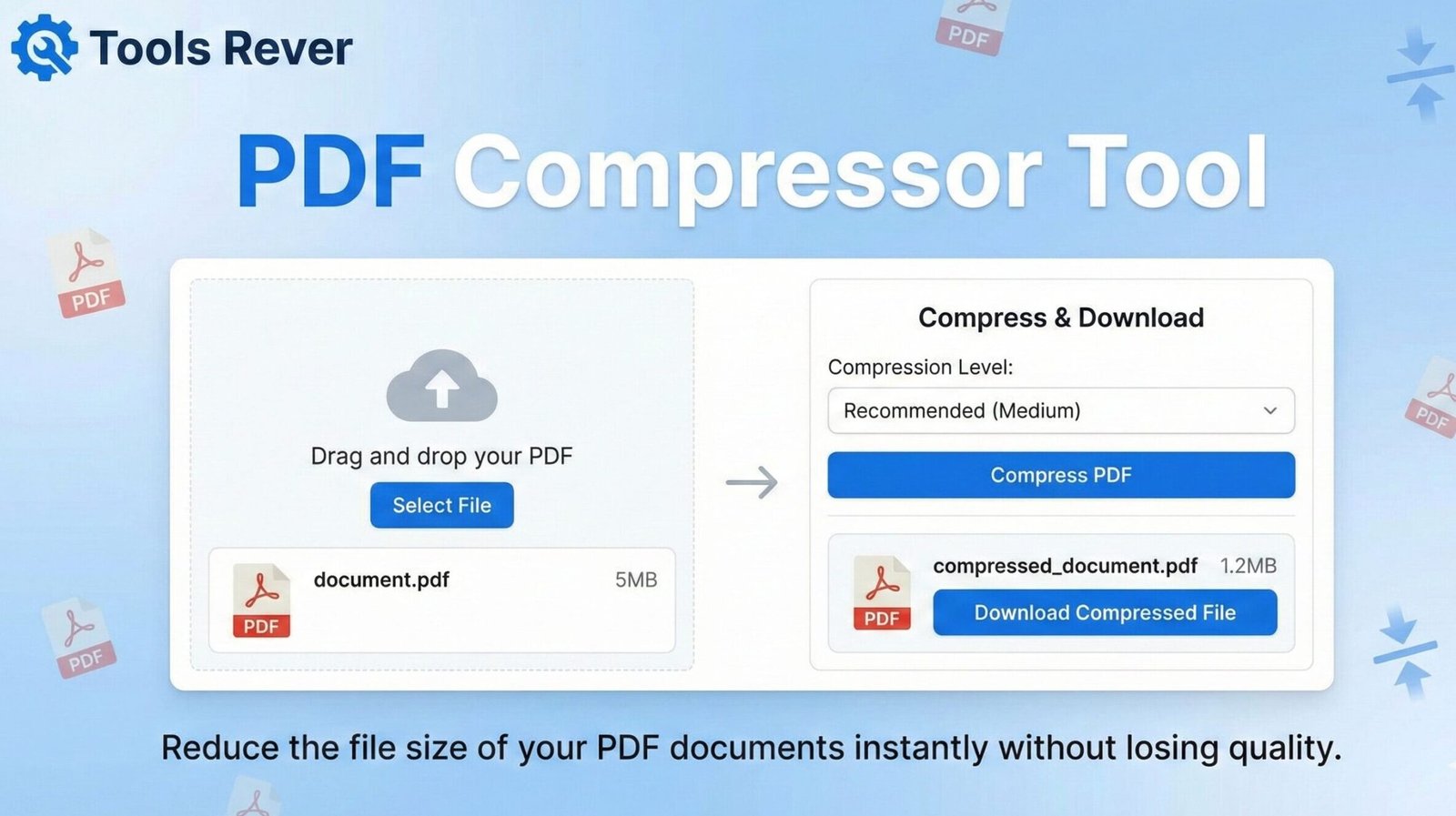
PDF Compressor
Reduce PDF file size while maintaining quality
About This Tool
Our PDF Compressor helps you reduce the file size of PDF documents without significant loss in quality. This is perfect for sending PDFs via email, uploading to websites with file size limits, or optimizing storage space.
The tool uses advanced compression algorithms to target images, fonts, and other elements within your PDF while preserving text clarity and document structure.
Upload Your PDF File
Drag & drop your PDF file here or click to browse
How to Use
Compression Level Comparison
| Compression Level | Size Reduction | Quality Impact | Best For |
|---|---|---|---|
| Low | 20-40% | Minimal | Professional documents, presentations |
| Medium | 40-60% | Noticeable but acceptable | General use, email attachments |
| High | 60-80% | Significant | Web uploads, storage optimization |
PDF Compressor: Reduce PDF File Size Online Free
Shrink large PDF files instantly! Our free PDF Compressor reduces file size for email, web & storage while preserving quality. Secure & easy to use.
PDF Compressor: Shrink Large Files Without Losing Quality
Have you ever tried to email a PDF document only to be blocked by attachment size limits? Or struggled to upload a portfolio or report to a website because the file was simply too large? These frustrating scenarios are all too common in our digital workflow. The culprit is often a PDF file bloated with high-resolution images, embedded fonts, and unnecessary data.
A PDF Compressor is the essential solution to this universal problem. This powerful online tool intelligently reduces the file size of your PDF documents while maintaining their readability and professional appearance. Whether you’re a student submitting assignments, a professional sharing reports, or a business owner emailing contracts, understanding how to effectively compress PDFs is a crucial digital skill that saves time, storage space, and frustration.
What is a PDF Compressor and How Does It Work?
A PDF Compressor is a specialized online utility that analyzes the contents of a Portable Document Format file and applies various optimization techniques to reduce its overall file size. Unlike simply zipping a file (which provides minimal compression for already optimized PDFs), a dedicated compressor works by targeting the specific elements that contribute to file bloat.
The compression process involves several sophisticated techniques:
- Image Optimization: This is the most significant factor. The tool resamples and recompresses images within the PDF, often reducing their resolution to a level suitable for screen viewing and printing while maintaining visual clarity.
- Font Subset Embedding: Instead of embedding complete font families, the compressor includes only the specific characters actually used in the document.
- Object Compression: The tool compresses the internal structure of the PDF, including vectors, commands, and other binary data.
- Cleanup of Unnecessary Elements: It removes redundant data, unused objects, and excessive metadata that accumulate during document creation.
Using our PDF Compressor tool automates this complex process, delivering a significantly smaller file that remains perfectly usable for its intended purpose.
Why PDF File Size Matters: The Critical Need for Compression
In today’s connected world, large files create tangible obstacles across personal and professional activities.
Email Attachment Limitations
Most email services, including Gmail and Outlook, enforce strict attachment size limits, typically between 20MB and 25MB. A compressed PDF ensures your document reaches its recipient without bouncing back or requiring complex workarounds like cloud storage links.
Website Upload Constraints
Content Management Systems (CMS) like WordPress, website forms, and job application portals often have stringent file size limits for uploads. A bloated PDF can prevent you from submitting crucial information.
Storage Space Optimization
For individuals and businesses managing large document archives, compressing PDFs can free up gigabytes of valuable digital storage space on hard drives and cloud services.
Faster Sharing and Download Times
A smaller file transmits faster over the internet. This is critical for remote teams collaborating on documents and for users with slower internet connections. According to a study by Akamai, a 100-millisecond delay in load time can hurt conversion rates by 7%.
Improved Digital Workflow
Large files take longer to open, scroll through, and process. Compressed PDFs provide a snappier, more responsive user experience, especially on mobile devices and older computers.
How Our PDF Compressor Works: A Simple Step-by-Step Process
Our tool is designed for maximum ease of use. You can compress your first PDF in under 60 seconds.
Step 1: Access the Tool
Navigate to our PDF Compressor tool.
Step 2: Upload Your PDF
Click the “Upload” button and select the file you wish to compress from your computer. Alternatively, drag and drop the file directly into the designated area.
Step 3: Choose Compression Level (Optional)
Many tools offer different compression presets:
- Low Compression: Minimal size reduction, best for print-quality documents.
- Medium Compression: Balanced approach, ideal for general sharing.
- High Compression: Maximum size reduction, perfect for screen viewing and email.
Step 4: Initiate Compression
Click the “Compress” or “Reduce Size” button. The tool will process your file, showing a progress indicator.
Step 5: Download Your Compressed PDF
Once processing is complete, you’ll see the new, smaller file size. Download the compressed PDF to your device.
Example Result:
- Original File:
Project_Report.pdf(48.5 MB) - Compressed File:
Project_Report_compressed.pdf(5.2 MB) - Savings: 89% reduction
Understanding Compression Types: Lossy vs. Lossless
To use a PDF Compressor effectively, it’s important to understand the two fundamental approaches.
Lossless Compression
This method reduces file size without sacrificing any quality or data. It works by finding more efficient ways to represent the same information.
- Best For: Text-heavy documents, legal contracts, archival documents, and any file where every single detail must be preserved exactly.
- Typical Size Reduction: 10-30%
Lossy Compression
This method permanently removes some data, typically targeting images by reducing their resolution and color information. The goal is to remove details that are least noticeable to the human eye.
- Best For: Documents with heavy images, screen viewing, email attachments, and web uploads.
- Typical Size Reduction: 50-95%
Our PDF Compressor tool typically employs intelligent lossy compression, focusing on image optimization to achieve the best balance of file size and usable quality.
What Makes a PDF File So Large? Common Culprits
Understanding what bloats your PDF helps you make smarter compression choices.
High-Resolution Images
This is the number one cause. A single high-megapixel photo embedded directly into a PDF can be many megabytes by itself.
Scanned Pages
When you scan a document as an image, each page becomes a full-image file. A 10-page scanned document is essentially 10 image files bundled together.
Embedded Fonts
While necessary for consistent display, including entire font families (especially Unicode fonts with thousands of characters) can add significant bulk.
Unoptimized PDF Creation
Some software, especially “Print to PDF” drivers, does not optimize the output, resulting in files larger than necessary.
Multimedia Elements
Embedded video, audio, and interactive 3D models can dramatically increase file size.
Just as a PDF Compressor optimizes your documents for digital use, ensuring your images are web-ready is crucial. For that, you can use our Image Resizer tool.
Advanced Compression Techniques Used by Professional Tools
A high-quality PDF Compressor employs several sophisticated methods under the hood.
Image Downsampling
This technique reduces the number of pixels per inch (PPI) in images. For screen viewing, 150 PPI is often sufficient, while print may require 300 PPI. Our tool intelligently downsamples images to an optimal resolution.
Color Space Conversion
Converting images from CMYK (for print) to RGB (for screen) can reduce file size. Similarly, converting color images to grayscale where color isn’t critical can achieve significant savings.
Object Streams and Cross-Reference Streams
Modern PDF compressors use advanced PDF features like object streams to bundle multiple PDF objects together, reducing overhead. Cross-reference streams make navigating the PDF file more efficient.
JBIG2 and JPEG2000 Compression
These are advanced image compression standards that provide better compression than traditional JPEG for certain types of images, especially those with text and line art.
Real-World Use Cases: Who Needs PDF Compression?
Students and Academics
- Submitting research papers and theses to online portals with strict size limits.
- Emailing assignments to professors without exceeding inbox limits.
- Storing a semester’s worth of reading materials on a laptop or tablet.
Business Professionals
- Emailing reports, proposals, and contracts to clients and colleagues.
- Uploading marketing materials and product sheets to a company website.
- Archiving old project files to save on cloud storage costs.
Graphic Designers and Photographers
- Sending digital portfolios to potential clients via email.
- Creating client previews that are quick to download and view.
- Storing archive copies of work without consuming excessive disk space.
Legal and Real Estate Professionals
- Emailing large sets of documents like contracts or property listings.
- Uploading documents to secure client portals and government systems.
- Maintaining digital records of case files and transactions.
Best Practices for Optimal PDF Compression
Follow these guidelines to get the best results from any compression tool.
- Choose the Right Compression Level: Use “High” for screen viewing and “Low” for documents that will be printed.
- Compress Early and Often: Compress the PDF as one of the final steps before sharing, rather than repeatedly editing a compressed file.
- Preview Before Finalizing: Always check the compressed file to ensure text remains sharp and images are acceptable for your needs.
- Use Descriptive Filenames: Add “_compressed” or “_small” to the filename to distinguish it from the original.
- Keep the Original: Always preserve your original, high-quality PDF until you are certain the compressed version meets all your requirements.
Frequently Asked Questions (FAQs)
Is compressing a PDF safe? Will it reduce the quality?
What is the maximum file size I can compress?
Can I compress a PDF without losing text quality?
Conclusion: Reclaim Your Digital Space and Efficiency
In a world dominated by digital communication, file size is not a minor technical detail—it’s a fundamental factor that determines whether your document can be shared, stored, and accessed efficiently. A PDF Compressor is a deceptively simple tool with an outsized impact on your productivity. It eliminates the barriers created by bloated files, ensuring your important documents can flow seamlessly through email, web portals, and storage systems. By mastering this tool, you equip yourself with a critical skill for the modern digital landscape.
Stop being blocked by file size limits and slow uploads. Ready to shrink your PDFs and supercharge your workflow? Use our free, secure, and powerful PDF Compressor tool now and experience the freedom of lightweight, professional documents!